Solution
GKE Standard cluster set up with a modern monitoring stack: Loki (SingleBinary), Grafana Alloy, and Prometheus via kube-prometheus-stack.
Deviations from the school material
The script from school contained some mistakes and outdated components. When running it I got deprecation warnings in my terminal, so I looked into whether I could fix that myself. I could.
| School script | My version | Reason |
|---|---|---|
grafana/loki-distributed | grafana/loki (SingleBinary) | loki-distributed chart is deprecated; functionality is now in the main chart |
grafana/promtail | grafana/alloy | promtail is deprecated |
standalone grafana/grafana release | bundled in kube-prometheus-stack | standalone chart is deprecated |
storageClass: managed-csi | standard-rwo | Azure-specific, does not work on GKE |
The original script is in static/docs/week-5/bestanden/opdracht/, my version in static/docs/week-5/bestanden/uitwerking/.
Charts used:
| Component | Namespace | Chart |
|---|---|---|
| Loki | loki | grafana/loki (SingleBinary) |
| Log collector | alloy | grafana/alloy |
| Prometheus + Grafana | prometheus | prometheus-community/kube-prometheus-stack |
| Ingress | ingress-nginx | ingress-nginx/ingress-nginx |
Sources:
| Topic | Source |
|---|---|
| Loki monolithic (SingleBinary) | grafana.com/docs/…/install-monolithic/ |
| Loki schema configuration | grafana.com/docs/loki/latest/operations/storage/schema/ |
| Configuring Alloy on Kubernetes | grafana.com/docs/alloy/latest/configure/kubernetes/ |
| Alloy example scenarios | github.com/grafana/alloy-scenarios |
Step 1: Create Kubernetes cluster
Why Standard and not Autopilot?
Autopilot restricts DaemonSets, blocks privileged containers by default, and requires resource requests for every pod. That conflicts with the monitoring stack:
- Alloy runs as a DaemonSet with access to
/var/log/podson the host - Prometheus node-exporter needs privileged access to host metrics
- ingress-nginx requires port configuration that Autopilot does not always allow
With Standard you simply have full control over node configuration, DaemonSets, and privileged workloads.
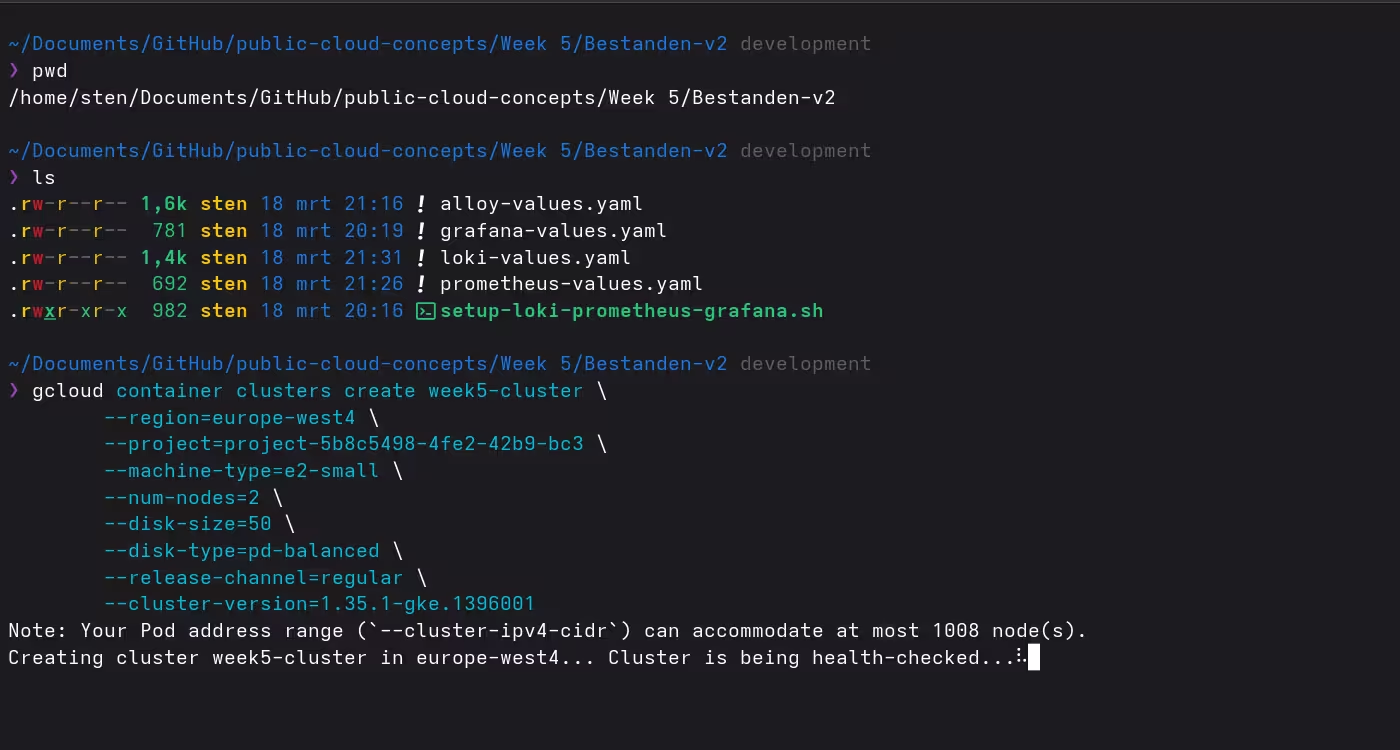
gcloud container clusters create week5-cluster \
  --region=europe-west4 \
  --node-locations=europe-west4-a,europe-west4-b \
  --project=project-5b8c5498-4fe2-42b9-bc3 \
  --machine-type=e2-medium \
  --num-nodes=2 \
  --disk-size=50 \
  --disk-type=pd-balanced \
--release-channel=regular| Flag | Value | Note |
|---|---|---|
--region | europe-west4 | Region closest to the Netherlands |
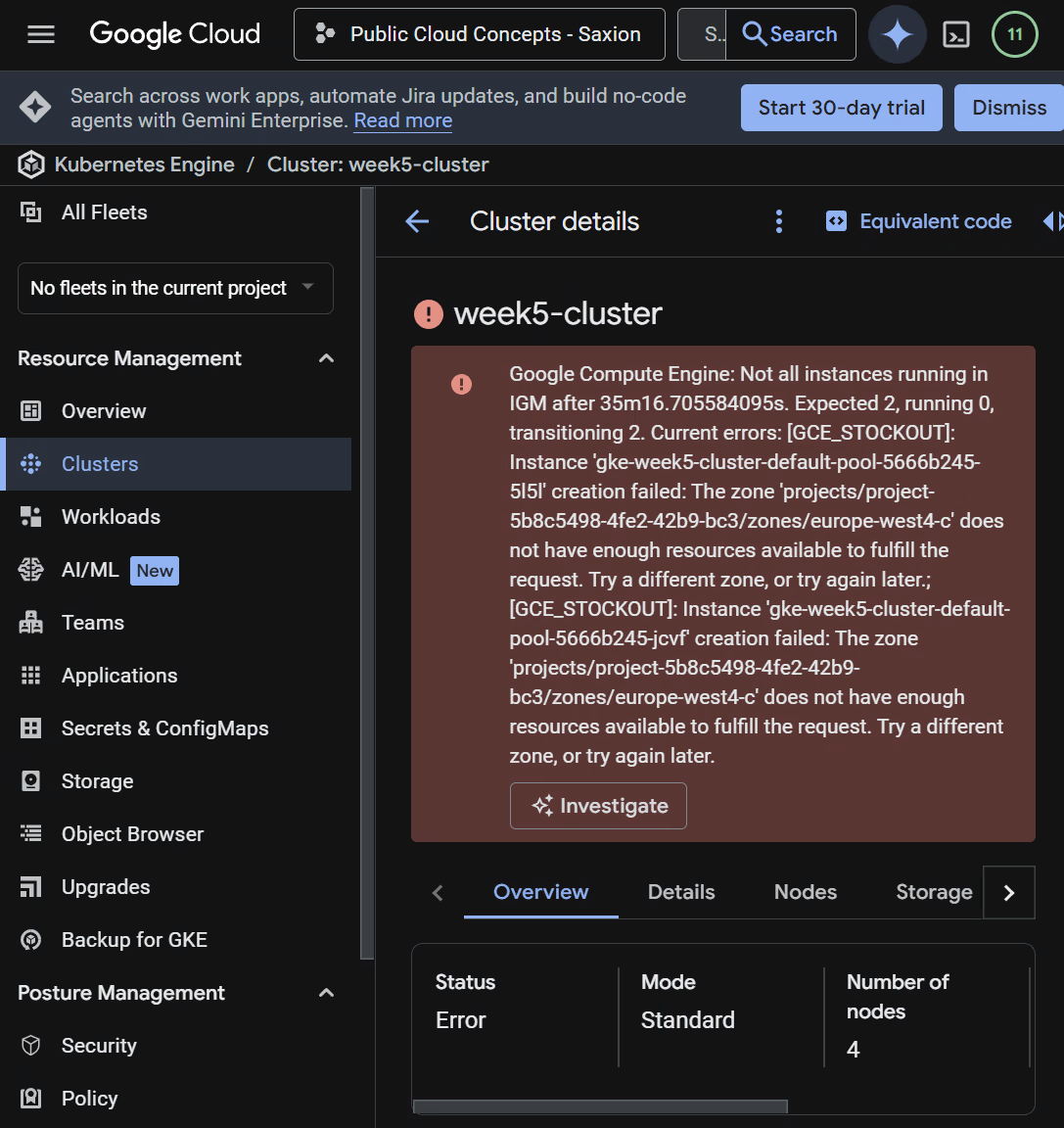
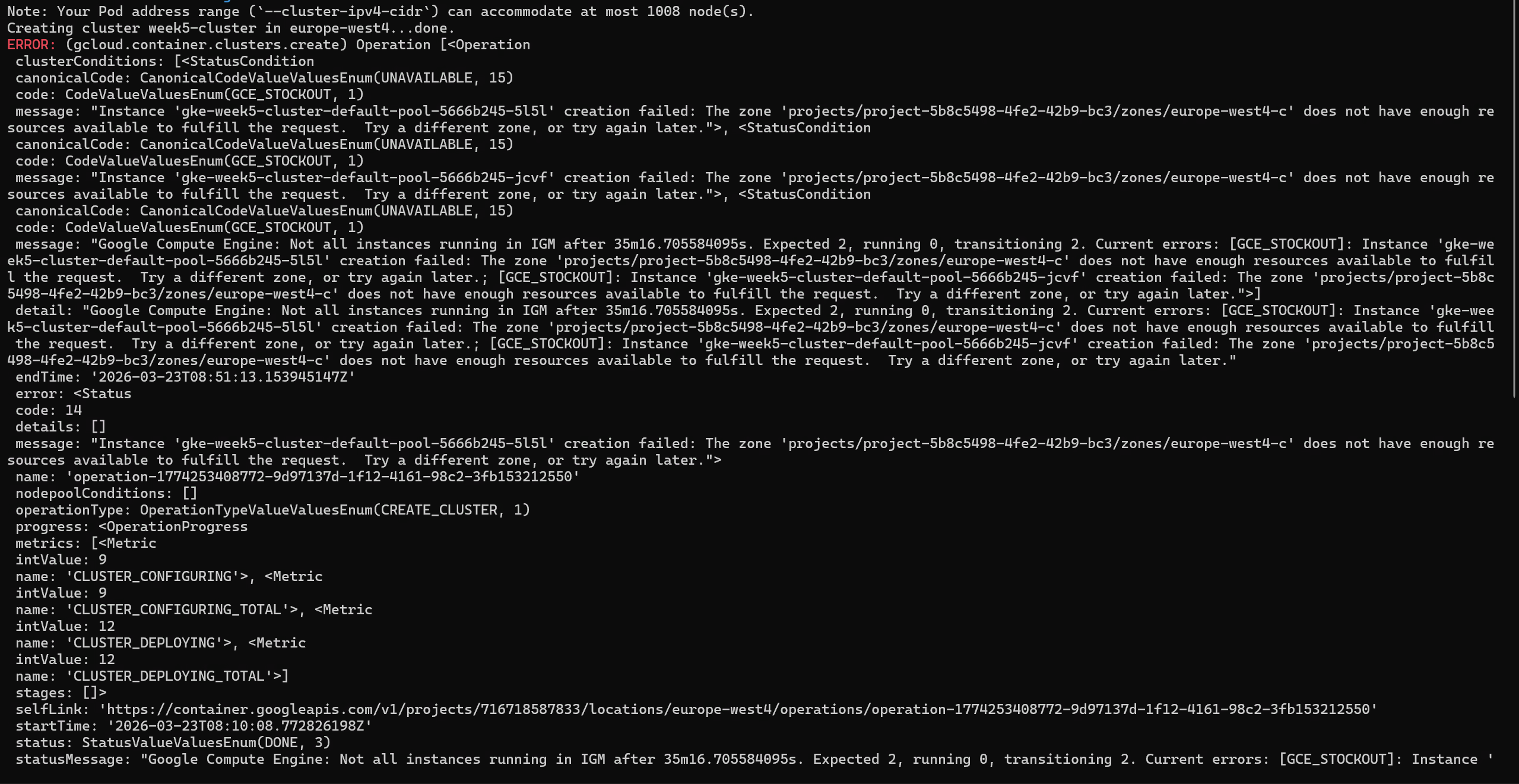
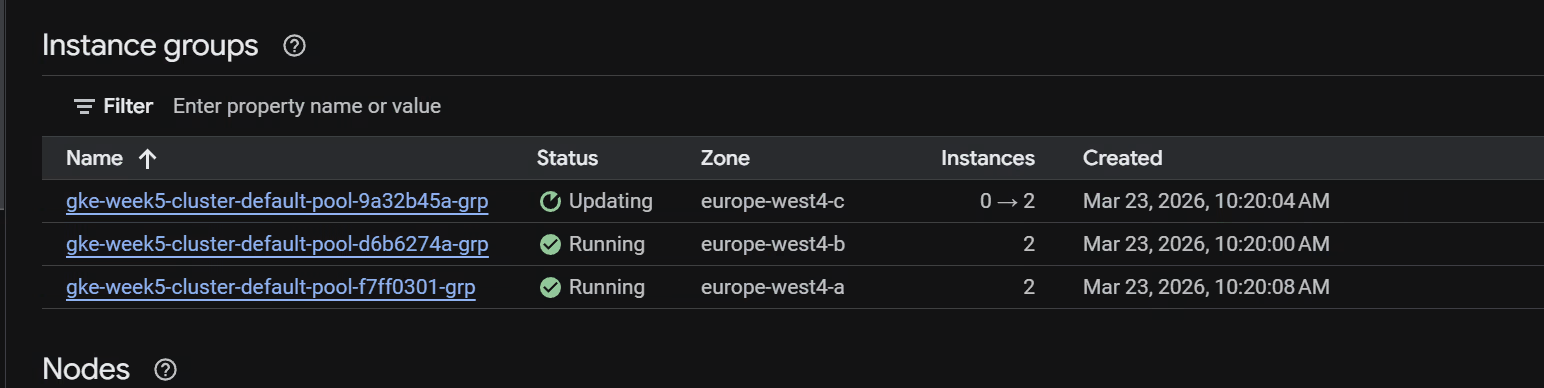
--node-locations | europe-west4-a,europe-west4-b | Zones a and b only; zone-c had continuous GCE_STOCKOUT errors |
--machine-type | e2-medium | 2 vCPU, 4GB RAM, sufficient for SingleBinary Loki + Prometheus + Grafana |
--num-nodes | 2 | 2 nodes per zone × 2 zones = 4 nodes total |
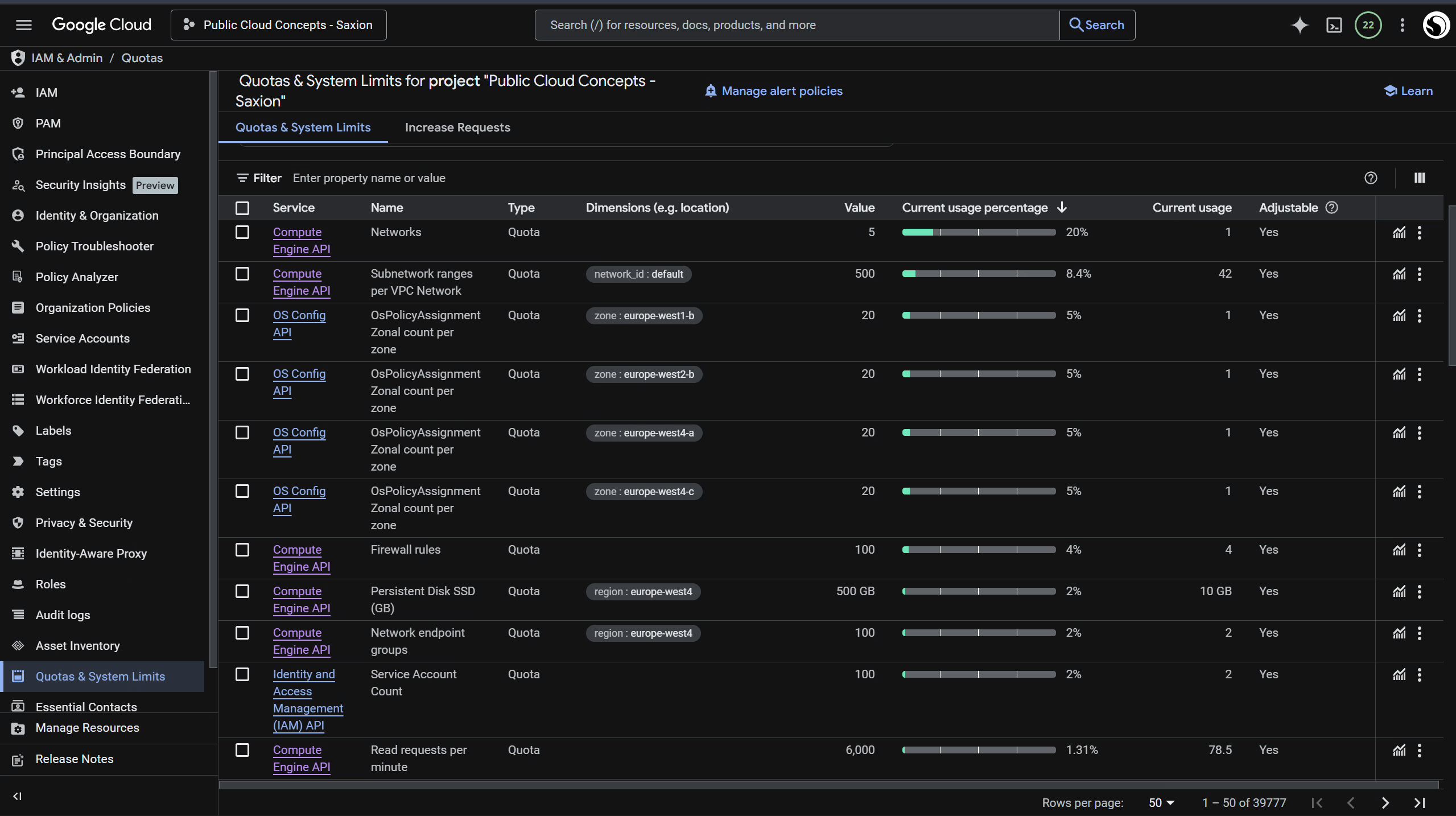
--disk-size | 50 | 4 × 50GB = 200GB SSD, well within the 500GB quota |
--disk-type | pd-balanced | SSD (balanced), better I/O for Prometheus TSDB writes |
--release-channel | regular | Stable GKE versions with automatic upgrades |
Student quota (disk): Default GKE settings (100GB per node) would require 4 × 100GB = 400GB SSD. With --disk-size=50 it comes to 4 × 50GB = 200GB SSD, well within the 500GB quota.
Student quota (RAM): e2-medium (4GB RAM per node) doubles the RAM compared to e2-small. GCP does not count RAM as a separate quota; the limit is on VM instances and CPUs, both well within student limits.
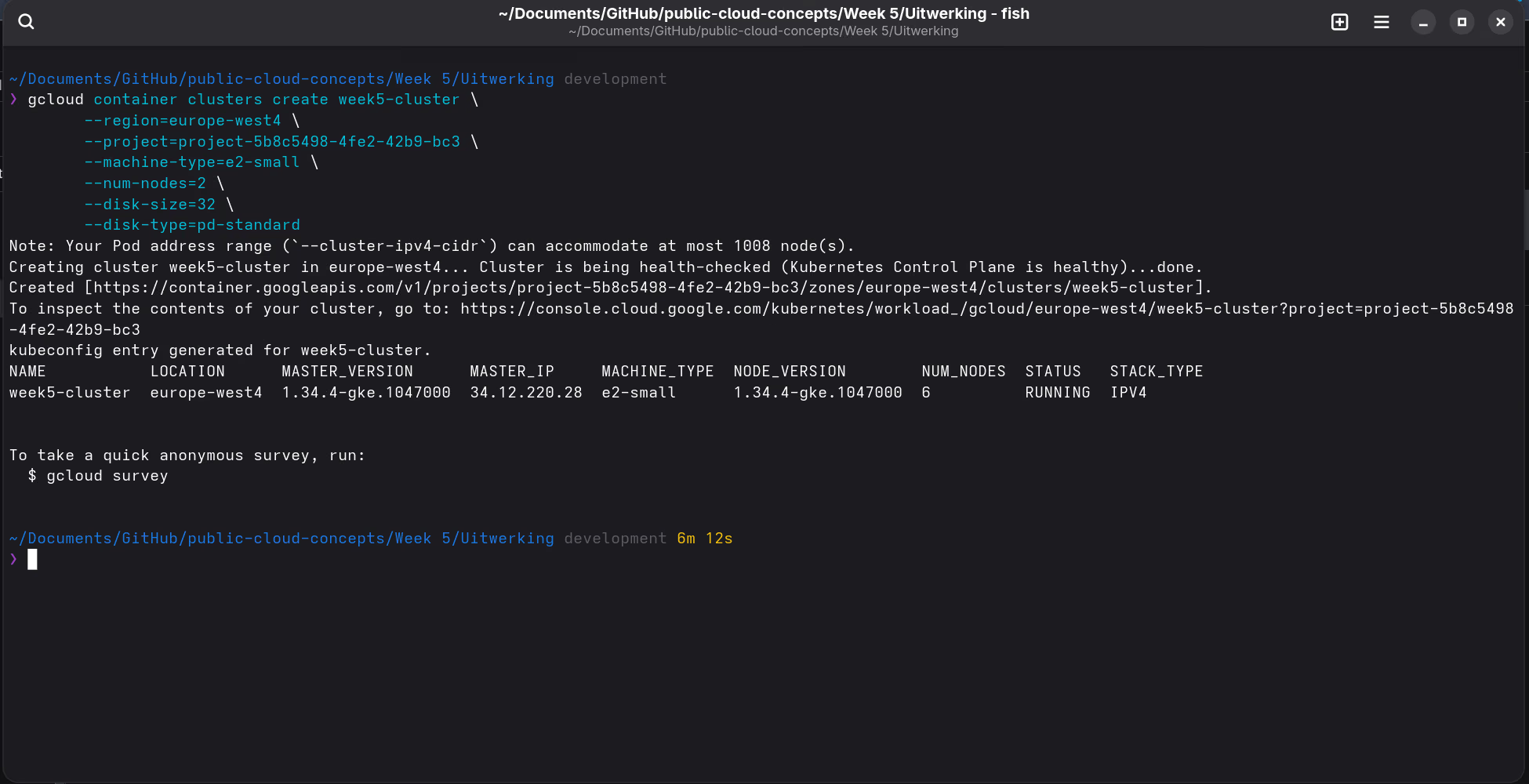
This cluster cost me almost two weeks.
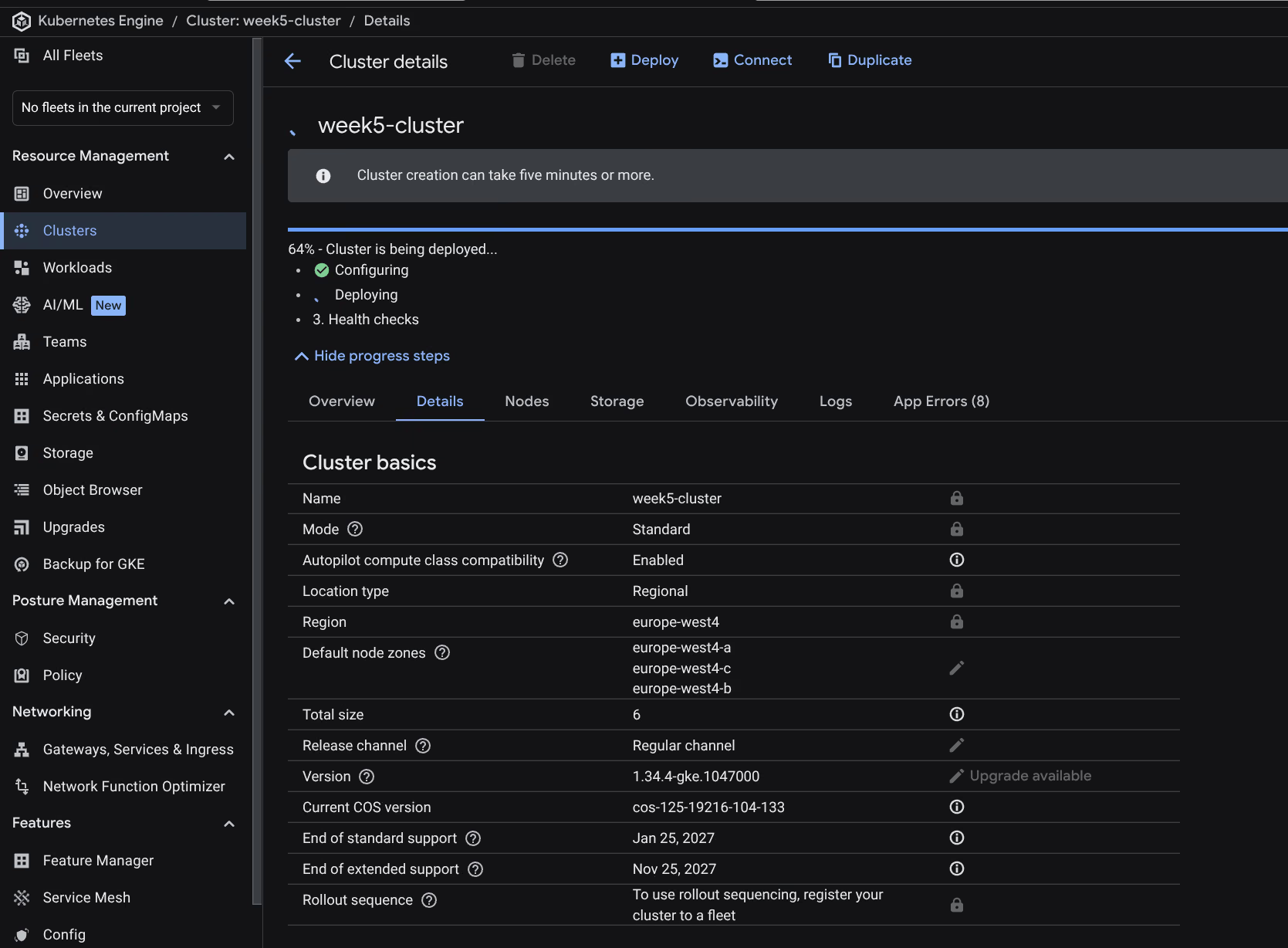
I kept getting a GCE_STOCKOUT error in zone europe-west4-c - the zone simply had no capacity available. My quotas looked fine, so I had no idea what was causing it. I looked into it together with a few classmates, but nobody could explain it directly.
The solution was to exclude zone-c with --node-locations=europe-west4-a,europe-west4-b. Zones a and b had no problems, zone-c kept hanging. For a monitoring stack two zones are more than enough.
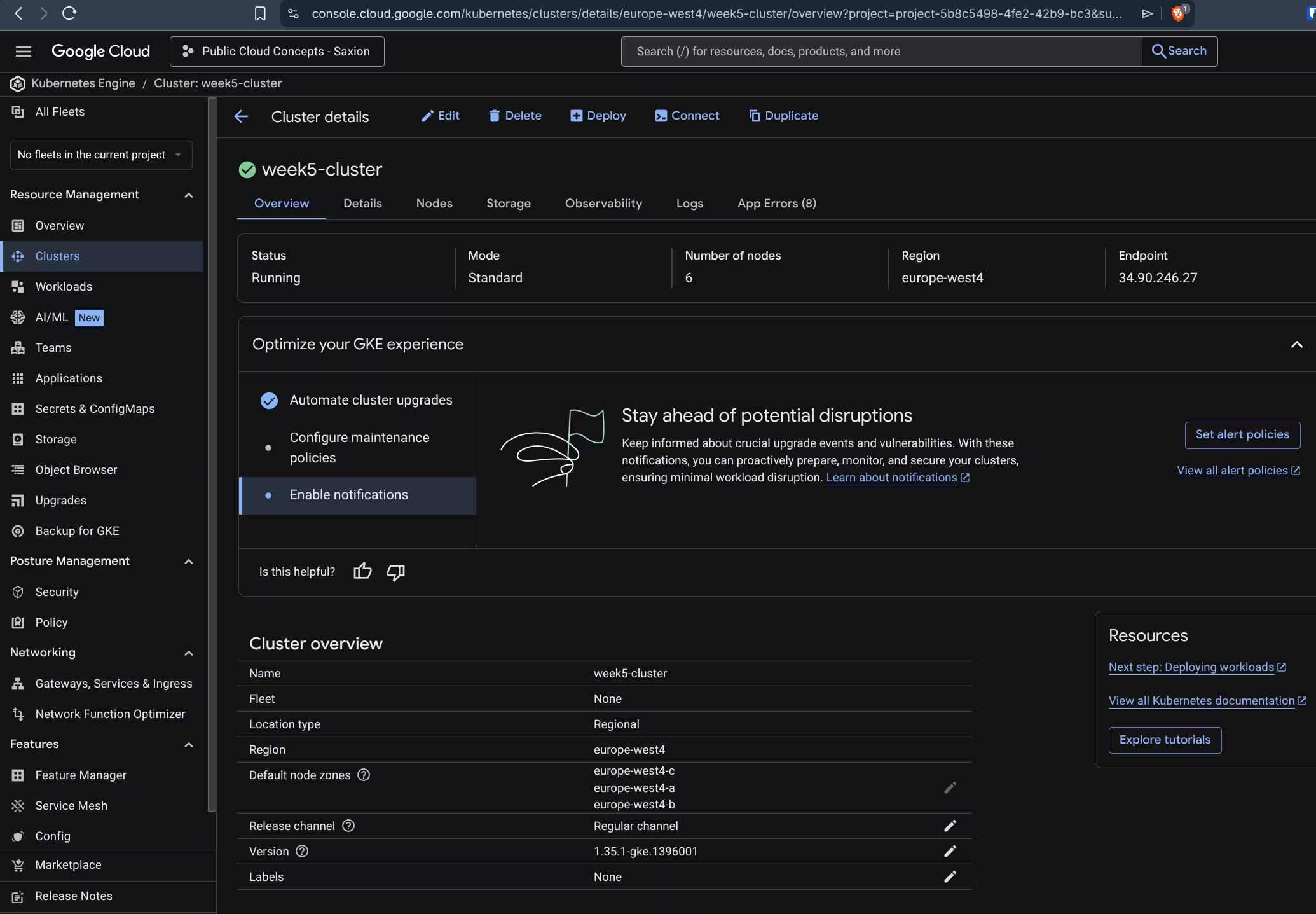
helm, kubectl, and gcloud are available there by default, no local installation needed.After installing the auth plugin in Cloud Shell:
gcloud components install gke-gcloud-auth-plugin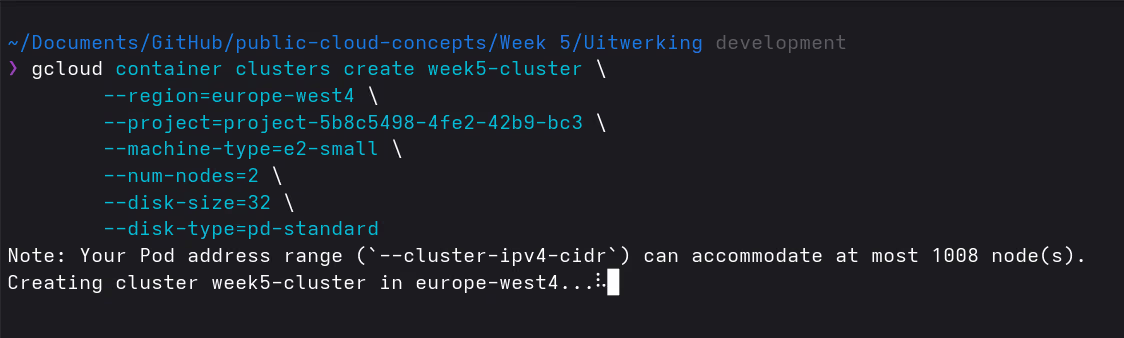
Step 2: Connect to the cluster
Connecting in Google Cloud Shell:
gcloud container clusters get-credentials week5-cluster \
  --region=europe-west4 \
  --project=project-5b8c5498-4fe2-42b9-bc3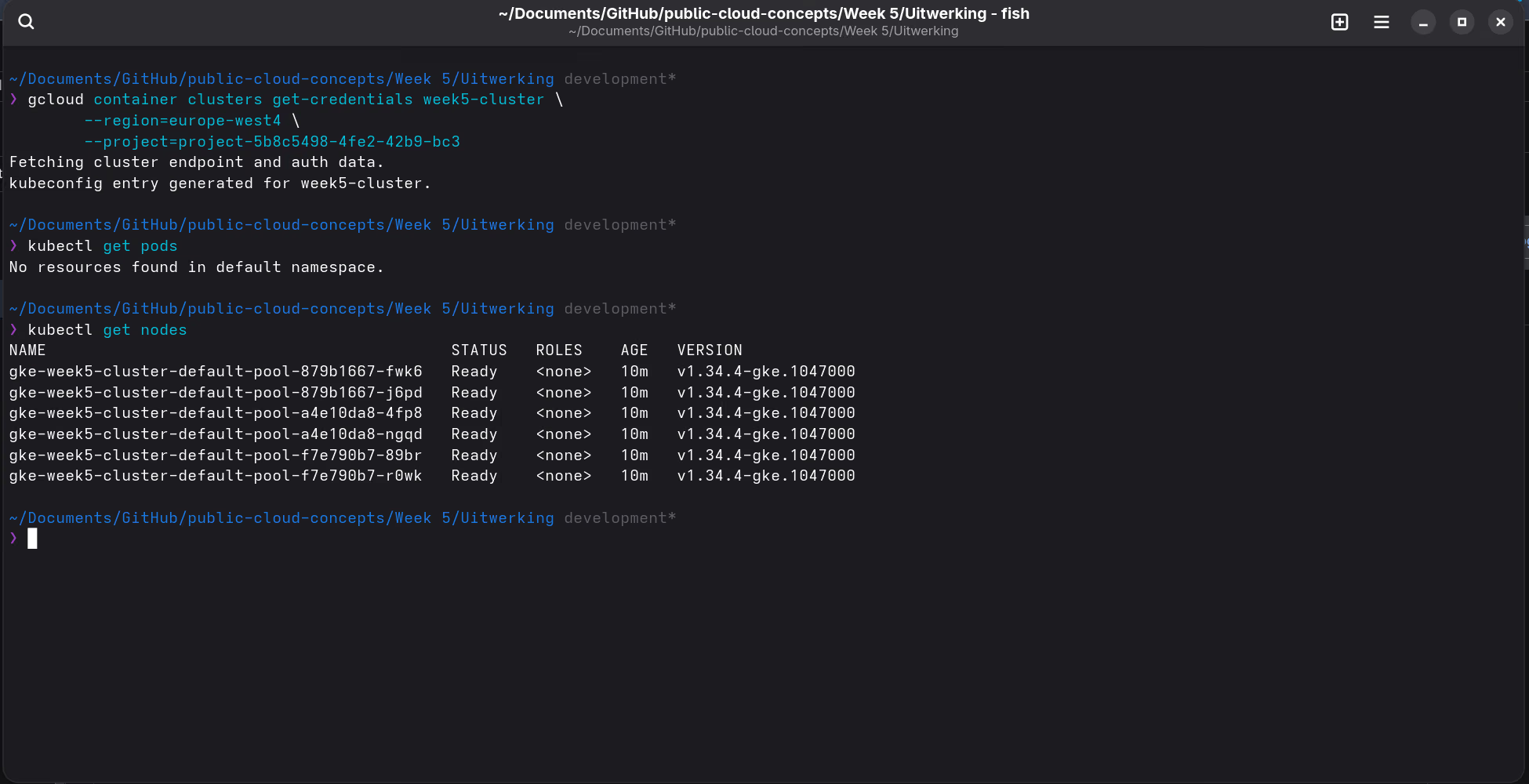
Step 3: Deploy the stack
Clone the repository in Cloud Shell (or update it if it already exists):
# First time
git clone https://github.com/Stensel8/public-cloud-concepts.git
cd public-cloud-concepts

# Already cloned before
cd public-cloud-concepts && git pull
Then run the script:
cd static/docs/week-5/bestanden/uitwerking
bash setup-loki-prometheus-grafana.sh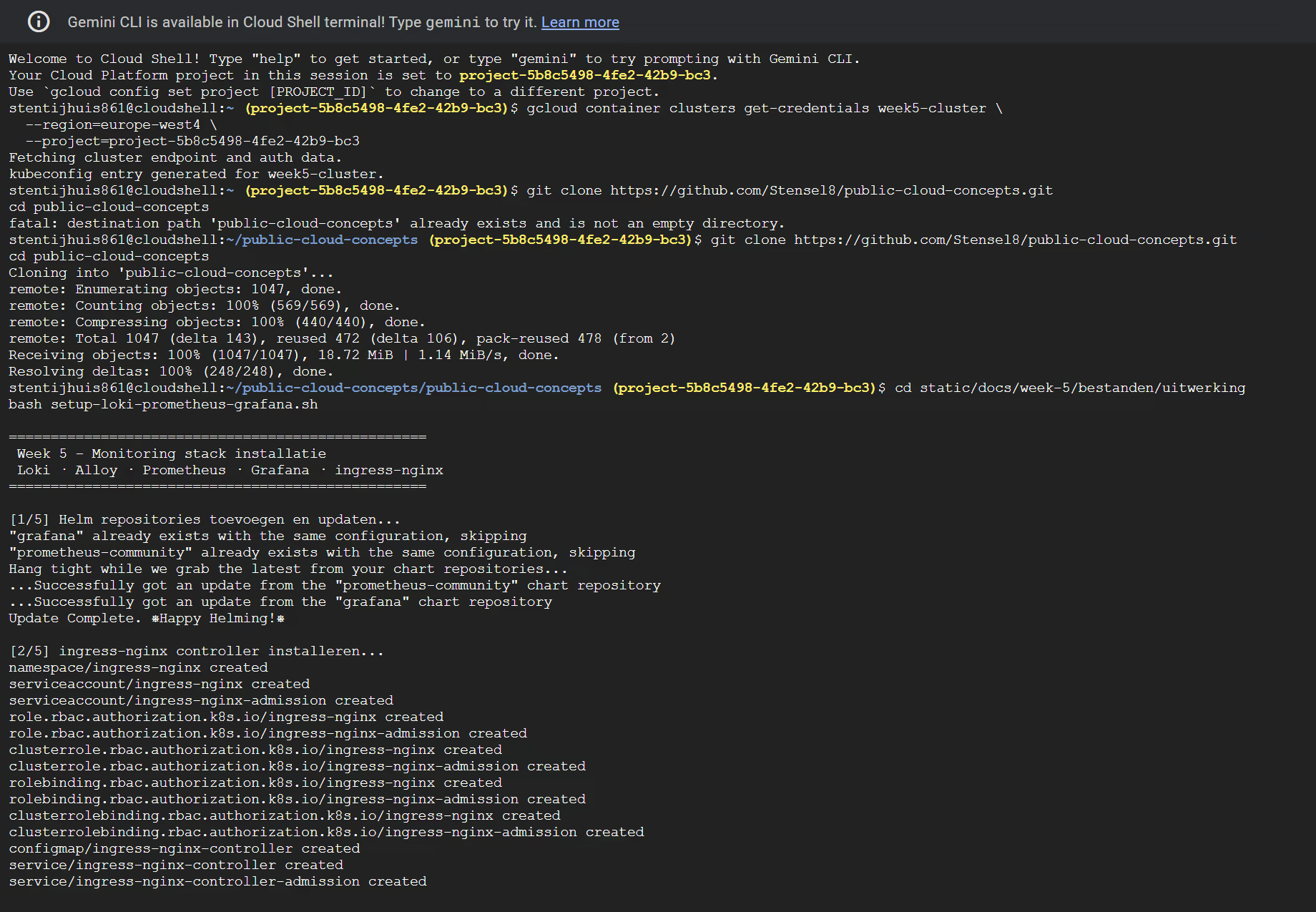
The script installs the stack in five steps: adding Helm repos, ingress-nginx (with kubectl wait), Loki, Alloy, Prometheus + Grafana.
Why ingress-nginx first?
The kube-prometheus-stack creates a Grafana Ingress object immediately during installation. The ingress-nginx controller validates that object via a webhook; if ingress-nginx is not yet running the Helm installation fails with a webhook error. By installing ingress-nginx first and waiting until the controller is Ready, this is prevented.
loki-values.yaml
The grafana/loki chart requires an explicit schemaConfig, otherwise Helm throws a hard error:
Error: You must provide a schema_config for Loki.Choosing a deployment mode
The grafana/loki chart supports three deployment modes. The choice depends on cluster size:
| Mode | Pods | When to use | Memcached caches |
|---|---|---|---|
| SingleBinary | 1 | Dev, labs, single user | Pointless (everything internal) |
| SimpleScalable | 3 (read / write / backend) | Medium-sized teams, staging | Useful |
| Distributed | 7+ (each component separate) | Large production, high load | Essential |
Distributed is not always better. The principle is that read and write paths scale independently, but if you end up with 1 replica per component you only add network hops and memory overhead. On a cluster of 4× e2-medium nodes Distributed is simply wasteful.
SimpleScalable sounds like the logical middle ground, but it requires an object storage backend (GCS, S3, or MinIO). Filesystem storage is the simplest option in a learning environment, but it is not supported in SimpleScalable mode. This produces the following error during helm install:
Error: Cannot run scalable targets (backend, read, write) or distributed targets without an object storage backend.SimpleScalable would be a good fit if object storage is already available (e.g. a GCS bucket), but setting that up adds significant overhead for a lab environment.
SingleBinary is therefore the right choice here: one pod, filesystem storage, no object storage required. The memcached caches (chunks-cache, results-cache) are pointless in this mode and are disabled. Everything runs in-process, so an external caching service only adds overhead.
grafana/loki-distributed chart, which is now deprecated. That does not mean distributed Loki is deprecated; the functionality is now in the main chart (grafana/loki). For a learning environment using filesystem storage, SingleBinary is the correct choice.The full file is on GitHub. Other choices:
storageClass: standard-rwo: GKE-compatible; the school script usedmanaged-csi, which is Azure-specificminio.enabled: false: filesystem storage is sufficient for this setupretention_period: 336h(14 days) + compactor withretention_enabled: true: logs are actually deleted after 14 days
alloy-values.yaml
Alloy replaces Promtail and uses the Alloy flow language. The config does the same as Promtail, but declaratively:
- Discover Kubernetes pods (
discovery.kubernetes) - Add labels based on pod metadata (
discovery.relabel) - Read logs from the pods (
loki.source.kubernetes) - Forward logs to Loki (
loki.write)
The grafana/loki chart places an nginx gateway in front of the Loki pod by default. All Loki URLs go through that gateway:
# Alloy to Loki (push)
http://loki-gateway.loki.svc.cluster.local/loki/api/v1/push

# Grafana datasource
http://loki-gateway.loki.svc.cluster.local
Two valid approaches: The official Grafana tutorial uses the
grafana/k8s-monitoringchart (a ready-made bundle). For more insight into what happens under the hood I chose the standalonegrafana/alloychart.
prometheus-values.yaml
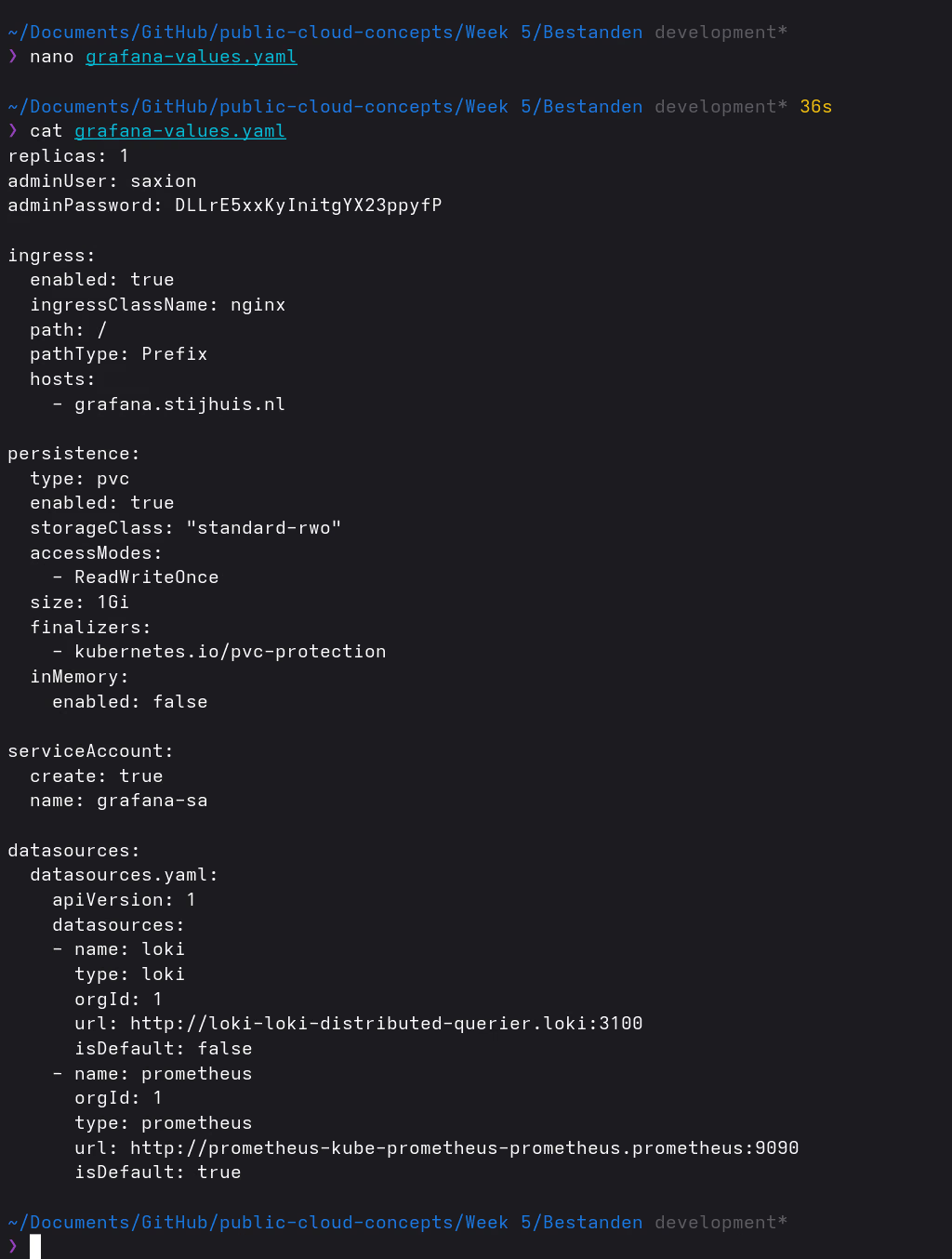
Grafana is built into kube-prometheus-stack (grafana.enabled: true), so no separate grafana/grafana chart is needed. Prometheus is set to 1 replica; the monitoring stack is RAM-intensive and multiple replicas are not needed for this setup.
Step 4: Get the IP address
kubectl get ingress -n prometheus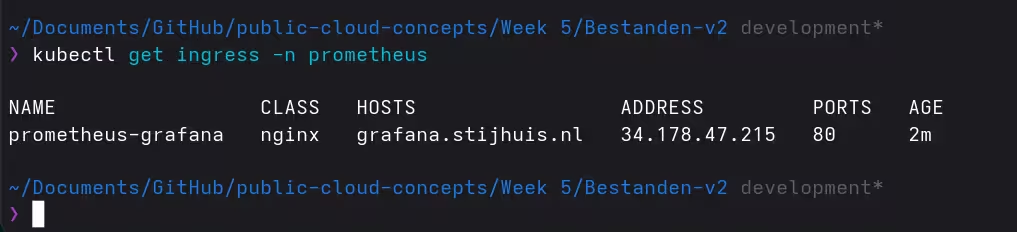
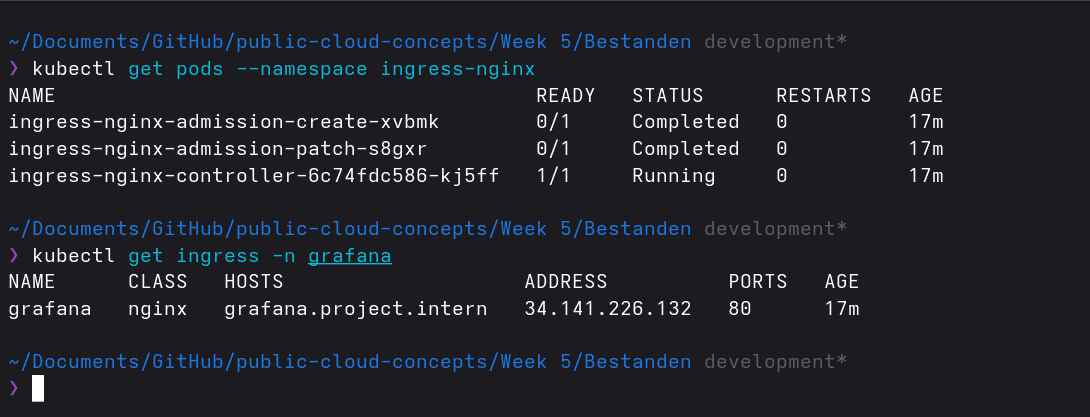
Step 5: Set up DNS
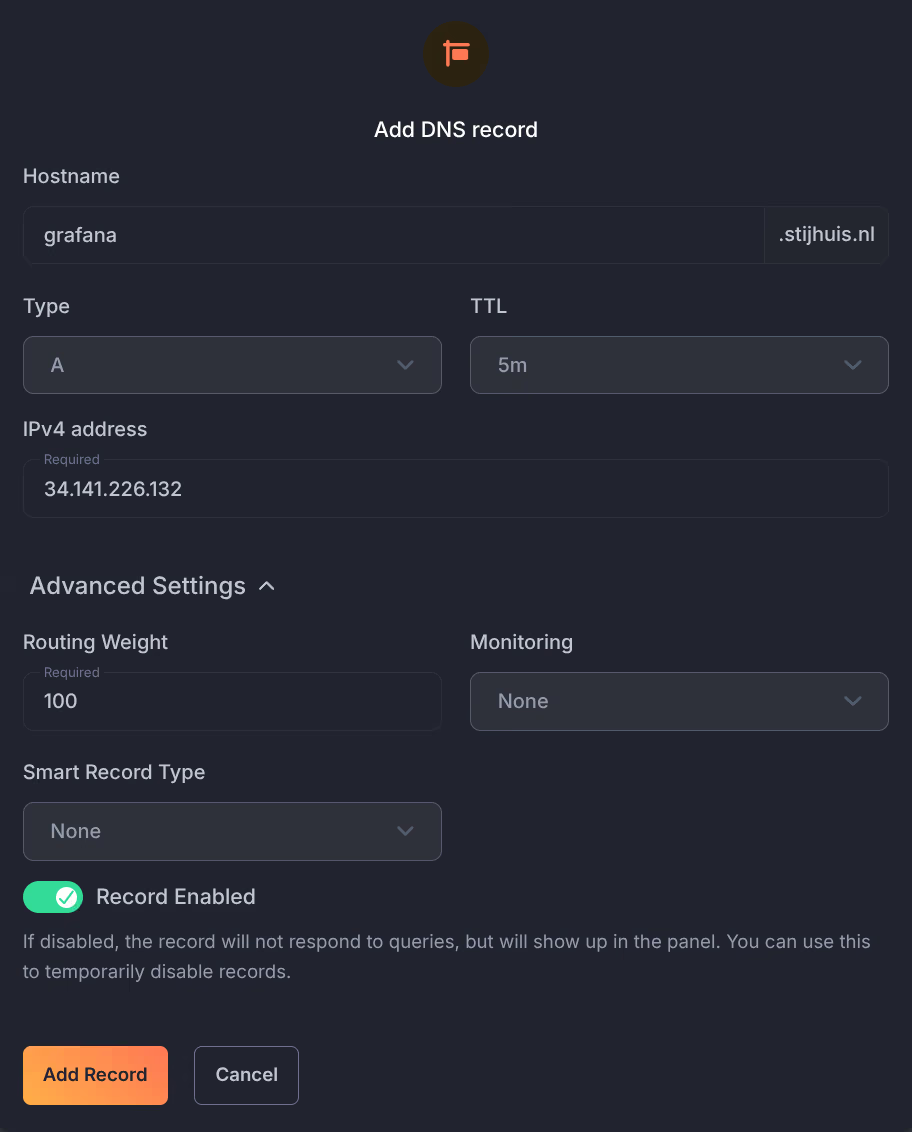
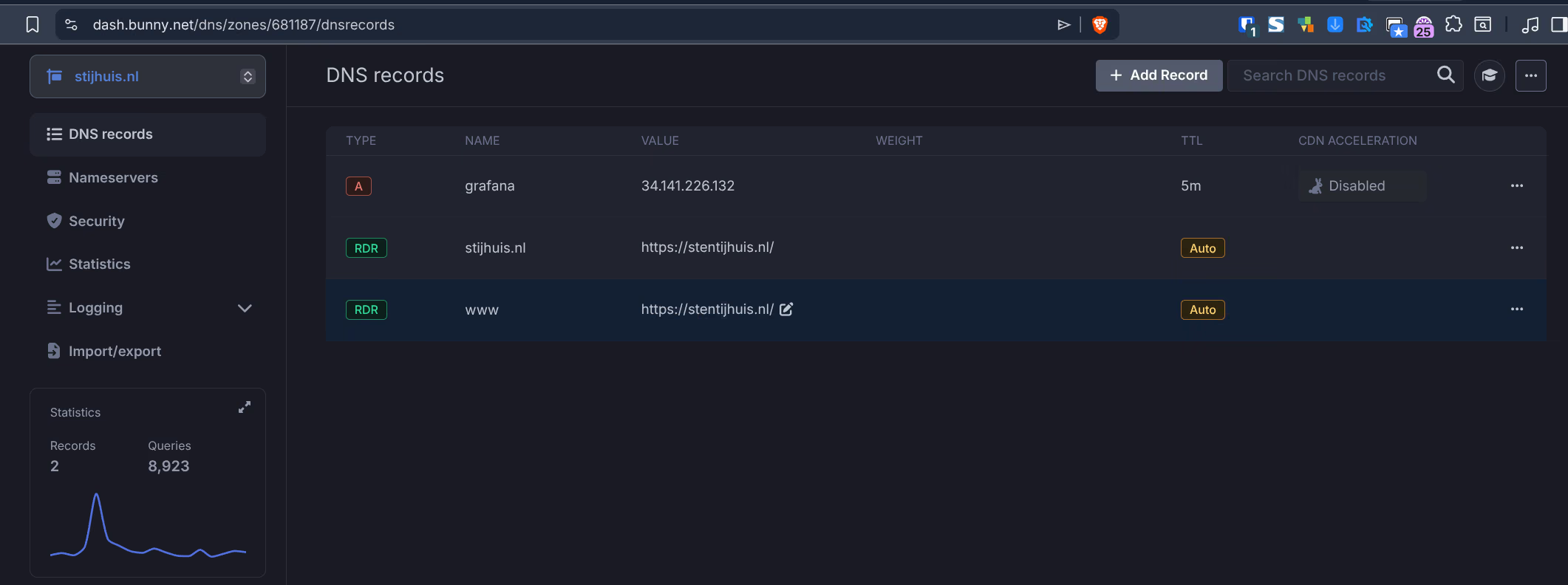
The external IP was set as an A record at Bunny DNS for grafana.stijhuis.nl, instead of manually updating the hosts file. A DNS record works directly on all devices worldwide, without local configuration.
Step 6: Open Grafana
Via https://grafana.stijhuis.nl in the browser:

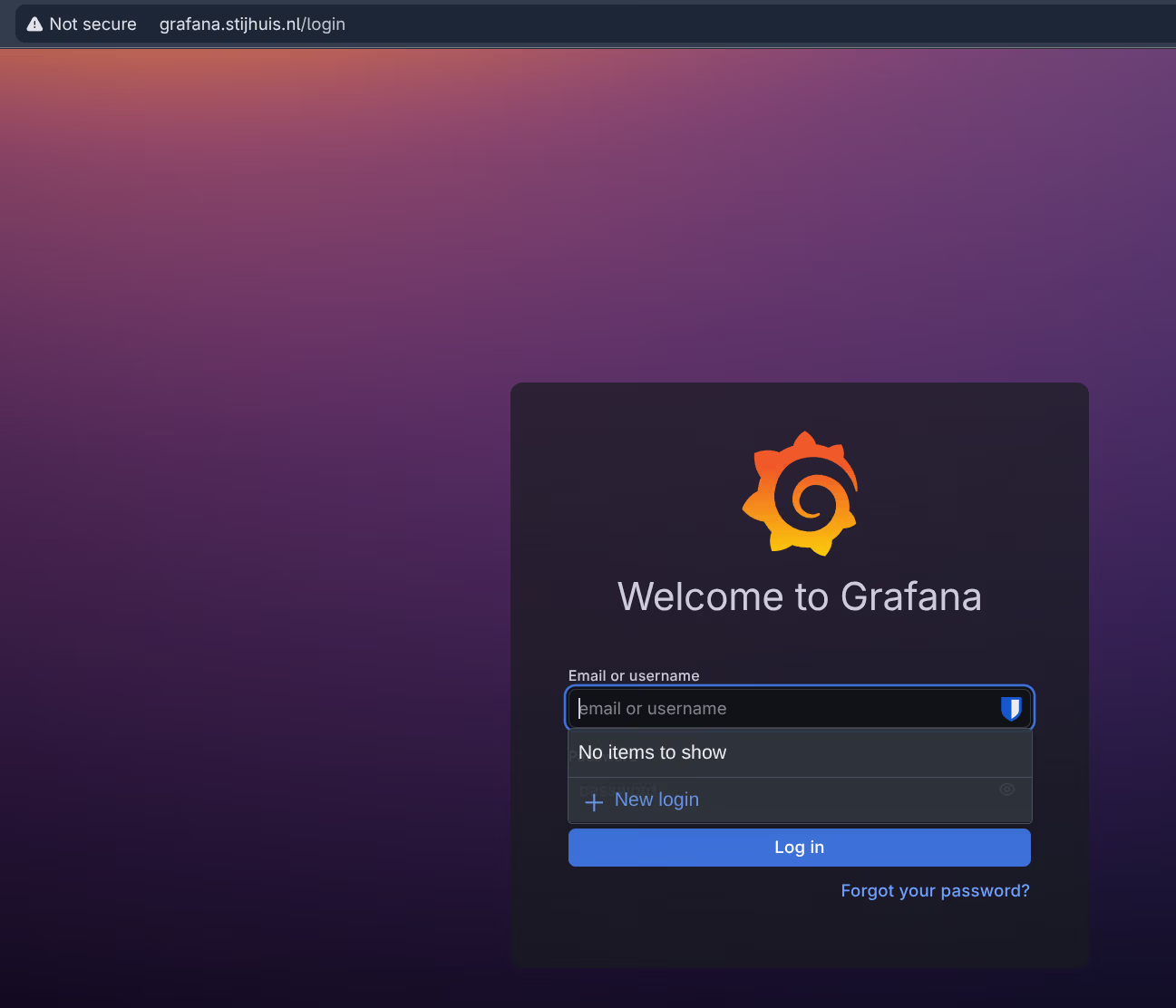
After logging in both datasources are active: Loki and Prometheus. Via Connections > Data sources I tested both sources.
Step 7: Set up dashboards
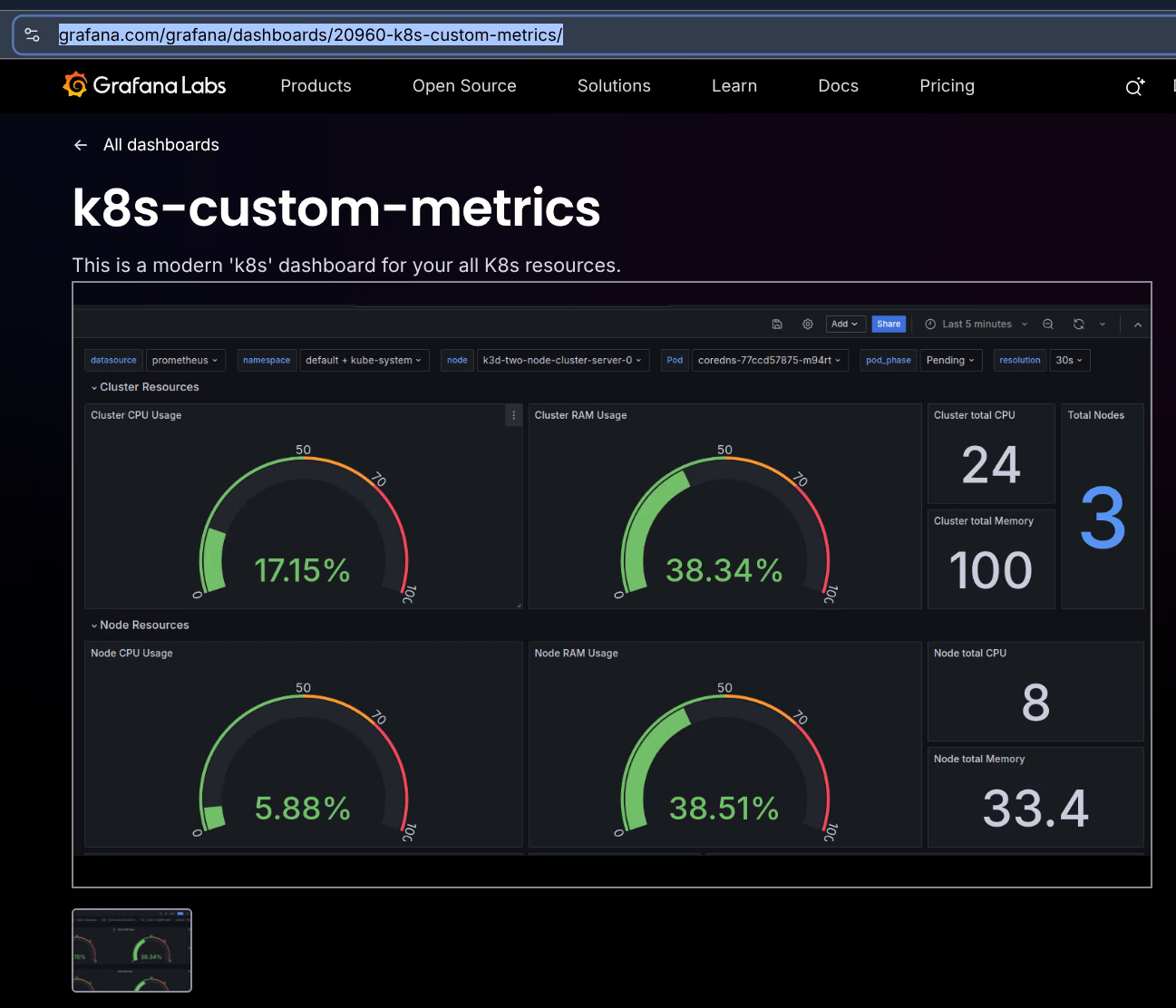
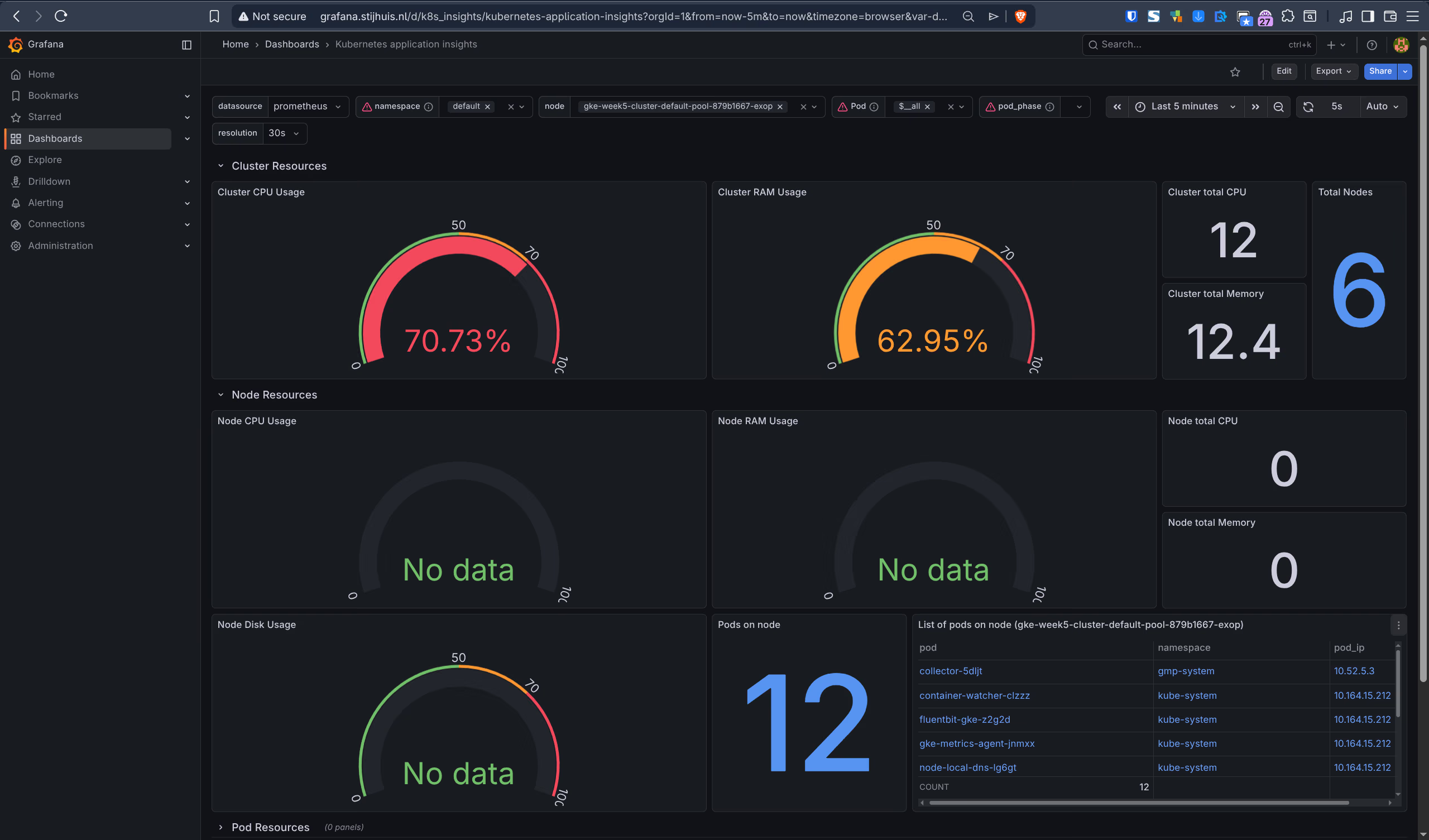
As a base for Kubernetes monitoring the community dashboard k8s-custom-metrics (ID 20960) was used (version 3).
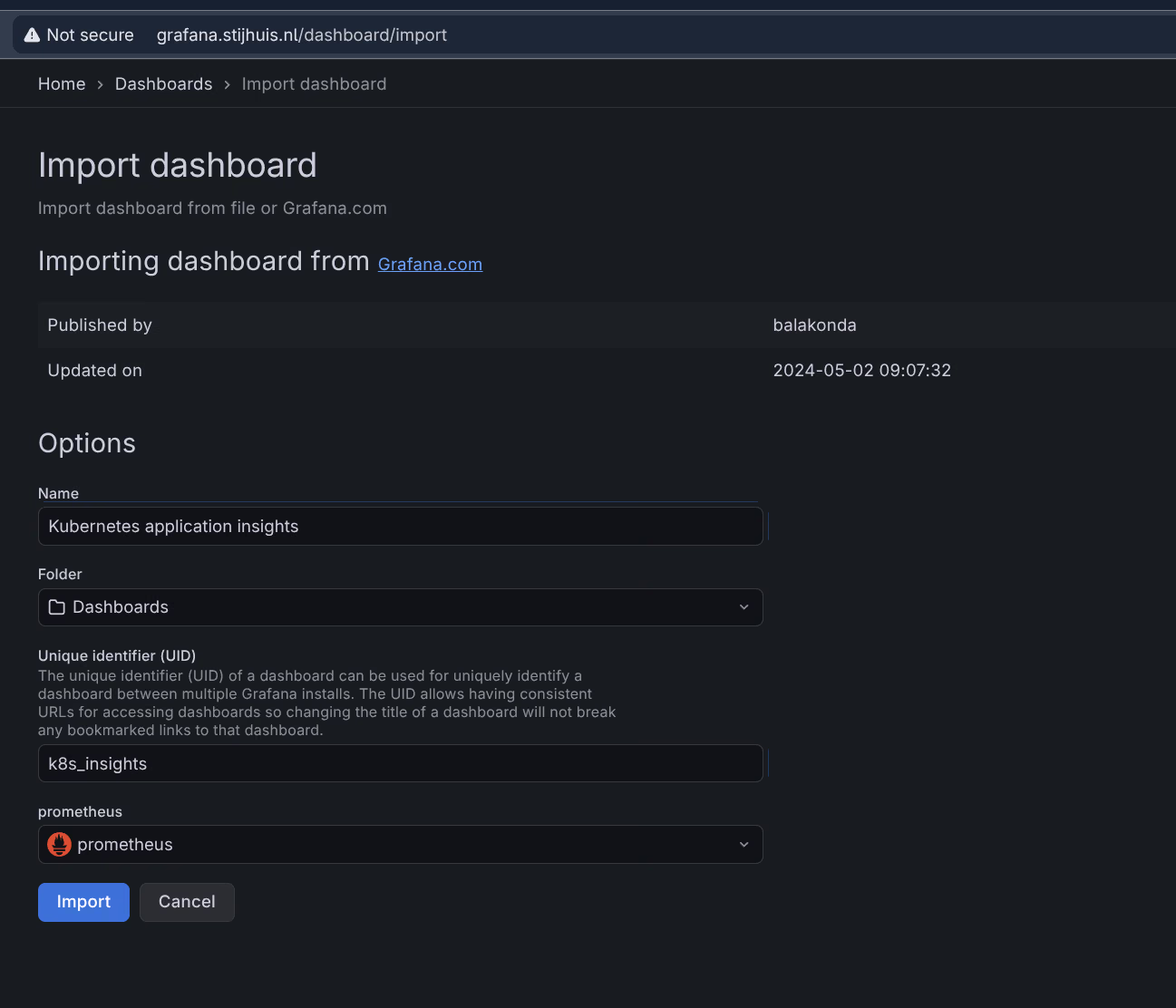
Dashboard imported via Dashboards > Import with ID 20960, Prometheus as datasource:
Step 8: Deploy Week 1 and 2 application
The week 1 application (stensel8/public-cloud-concepts:latest) is a static website served via nginx. Week 2 uses the same Docker image, a separate deployment is not needed for that. The installation script deploys the app automatically as step 6. Since ingress-nginx is already active, the app uses a ClusterIP service with an Ingress.
kubectl get pods -n mywebsite
kubectl get ingress -n mywebsite
Set a DNS A record for mywebsite.stijhuis.nl pointing to the same Ingress IP address as Grafana.
What is there to monitor on a static site?
At first glance not much, but the monitoring stack automatically picks up the following:
- Loki + Alloy reads the nginx access logs → HTTP status codes, request rate, 404s
- kube-state-metrics (part of kube-prometheus-stack) → pod availability, restarts, CPU/memory
In Grafana these logs and metrics are directly visible via the Loki and Prometheus datasources. That is exactly what the assignment demonstrates: not the complexity of the app, but the functioning of the monitoring stack.
Step 9: Architecture diagram
The monitoring stack consists of four layers: log collection (Alloy), log storage (Loki), metrics (Prometheus + exporters) and visualisation (Grafana). Ingress-nginx handles external access.
    flowchart LR
    browser(["Browser\ngrafana.stijhuis.nl"])

    subgraph ingress_ns["ingress-nginx"]
        nginx["ingress-nginx\nLoadBalancer"]
    end

    subgraph app_ns["mywebsite"]
        app["nginx static site\nstensel8/public-cloud-concepts"]
    end

    subgraph alloy_ns["alloy"]
        alloy["Grafana Alloy\nDaemonSet"]
    end

    subgraph loki_ns["loki"]
        loki_gw["Loki Gateway"]
        loki_pod[("Loki SingleBinary\nfilesystem storage")]
        loki_gw --> loki_pod
    end

    subgraph prom_ns["prometheus — kube-prometheus-stack"]
        node_exp["node-exporter\nDaemonSet"]
        ksm["kube-state-metrics"]
        prom[("Prometheus TSDB")]
        grafana["Grafana"]
        node_exp -->|"scrape /metrics"| prom
        ksm -->|"scrape /metrics"| prom
    end

    browser -->|"HTTPS — Bunny DNS"| nginx
    nginx --> grafana
    app -->|"stdout/stderr"| alloy
    alloy -->|"HTTP push"| loki_gw
    prom -->|"PromQL"| grafana
    loki_pod -->|"LogQL"| grafana